Sync Application Data into Permit
Policy decisions depend on data. You can pass some data in the check arguments, but most of it is synced to Permit in advance. This guide covers each data entity and how to sync it to Permit.
Before we start: Understand Permit Data
These are the data structures you can sync to Permit:
- users (
RBAC,ABAC, &ReBAC)- user attributes (
ABAC)
- user attributes (
- tenants (
RBAC,ABAC&ReBAC)- tenant attributes (
ABAC)
- tenant attributes (
- role assignments (
RBAC&ReBAC) - resource instances (
ABAC&ReBAC)- resource instance attributes (
ABAC)
- resource instance attributes (
- resource relationship tuples (
ReBAC)
Most permissions depend on data beyond the check arguments.
Permit also supports event-driven sync of your data using OPAL scopes. See Use an external data source.
You can add application data in the Permit UI or with the SDK. This guide shows both where both are available.
Users & User Attributes (ABAC)
Send user attributes from your code with the Permit SDK. Use this for bulk operations or to connect attribute management to your existing systems.
A SaaS platform has subscription tiers: Free, Pro, and Enterprise. When a user upgrades,
your system syncs the new attribute (for example subscriptionLevel: Pro) to Permit's API.
The next check sees the new attribute, so the user gets access to Pro features without manual steps.
To add attributes to a user, call the SDK's users.sync function with the user and their custom attributes.
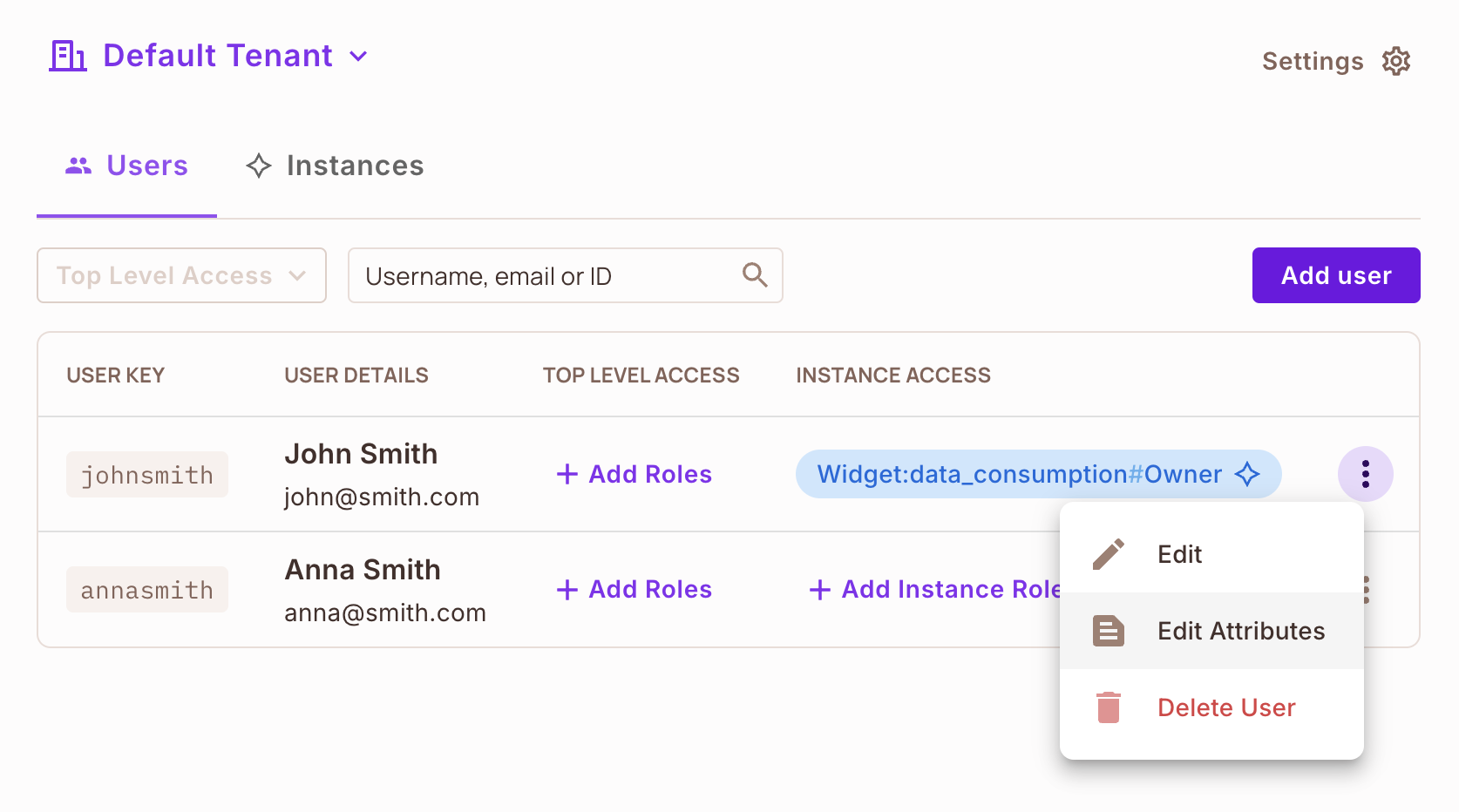
To add attributes to a single user in the dashboard, go to Directory, select
the user, click the three dots, and select Edit Attributes.
Tenants & Tenant Attributes (ABAC and ReBAC)
Tenant attributes describe a tenant, which usually represents an organization or account in a multi-tenant system. Policies can use them to treat tenants differently.
In a multi-tenant e-commerce application, each tenant (merchant) has settings such as region and industry. When a new tenant signs up and picks an industry (for example Retail) and a region (for example Europe), you sync these attributes to Permit's API. Your policies can then show the tenant's users only the content, features, or settings for that region and industry.
For example:
- Region: Defines the geographical location of the tenant, such as North America, Europe, or Asia.
- Subscription Level: Specifies the service tier, such as Basic, Pro, or Enterprise.
- Industry: Indicates the tenant's sector, like Healthcare, Finance, or Retail.
Using tenant attributes, you can enforce policies like:
"Allow access to advanced analytics only for tenants with a Pro or Enterprise subscription."
To create a tenant with attributes, call the SDK's tenant.create function.
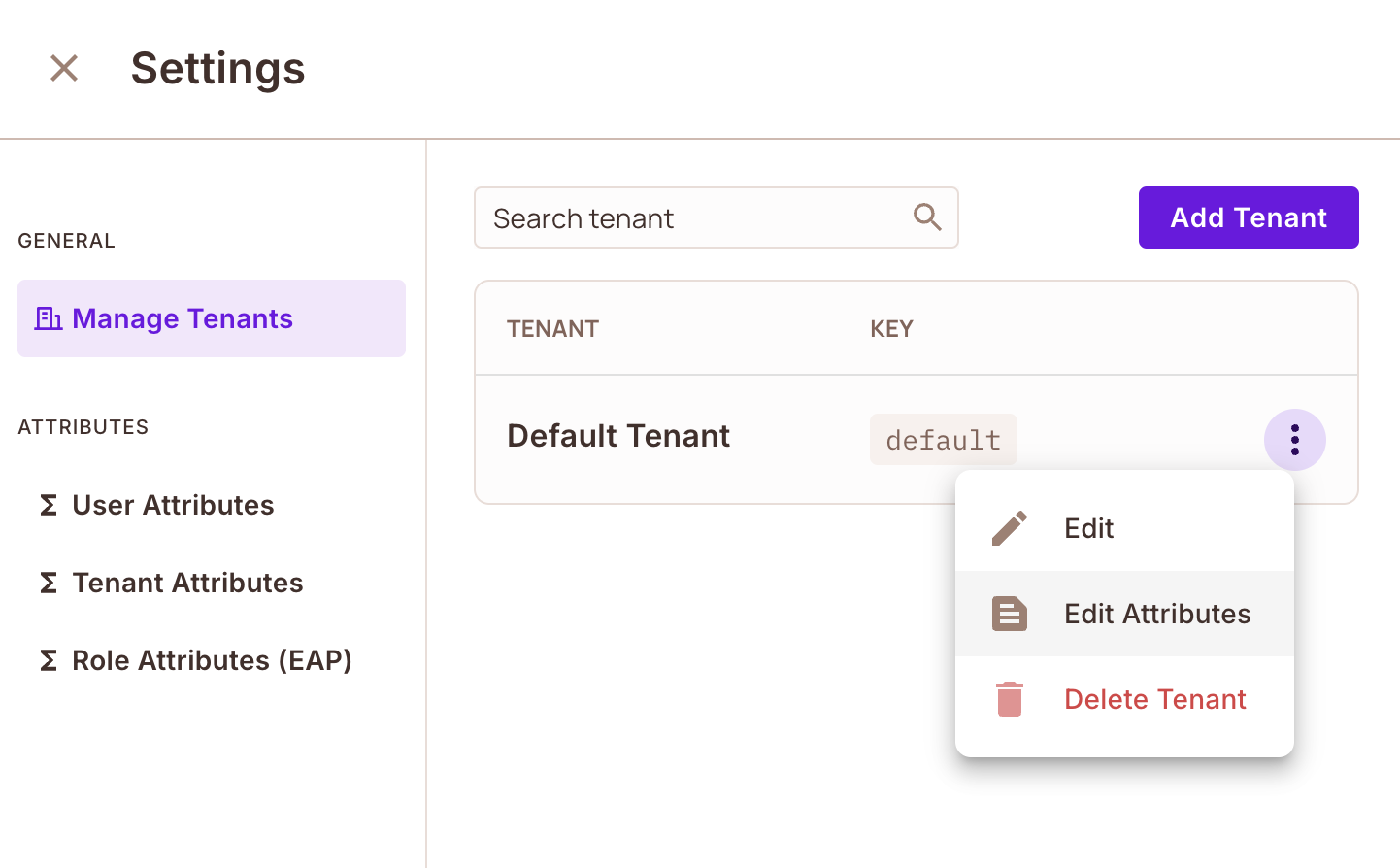
You can also add attributes to a single tenant in the dashboard.
Go to Directory, then Settings, and select Manage Tenants. Find the tenant you want to
update, click the three dots next to it, and choose Edit Attributes.
Add or modify attributes as needed, specifying the name and value as a JSON object.
Role Assignments (RBAC & ReBAC)
Role assignments define what a user can do, either across a tenant (RBAC) or on specific resource instances (ReBAC).
A project management tool has the roles Admin, Manager, and Contributor. When a user is added to a project as its Manager, your system syncs that assignment to Permit's API. The user can then assign tasks and view reports in that project, and their roles in other projects don't change.
When creating a new user, you can assign top-level or instance-specific roles directly using the SDK's users.sync function.
Define top-level roles by specifying the role and the tenant it belongs to. Roles are always an array,
because a user can have more than one role in multiple tenants. For example:
You can also assign resource instance roles, which apply to one resource instance. For example, with a resource
called Dashboard and two instances, Dashboard A and Dashboard B, the same user can be
Owner of Dashboard A and Viewer of Dashboard B.
Resource Instances and Resource Instance Attributes (ABAC & ReBAC)
Resource attributes describe a resource, so policies can depend on it. You define the attributes when you create the resource in Permit. Then, for each resource instance, you set values for those attributes.
A learning management system has a "Courses" resource with attributes such as difficultyLevel
(Beginner, Intermediate, Advanced) and category (Math, Science). When a course is created, you sync
it to Permit's API with its attribute values, and can add instance data such as the instructor or a course
ID. Policies then use those values, for example to grant certain users access only to Advanced-level Math courses.
To create a resource instance with custom attributes, call the SDK's resource_instances.create function. For example:
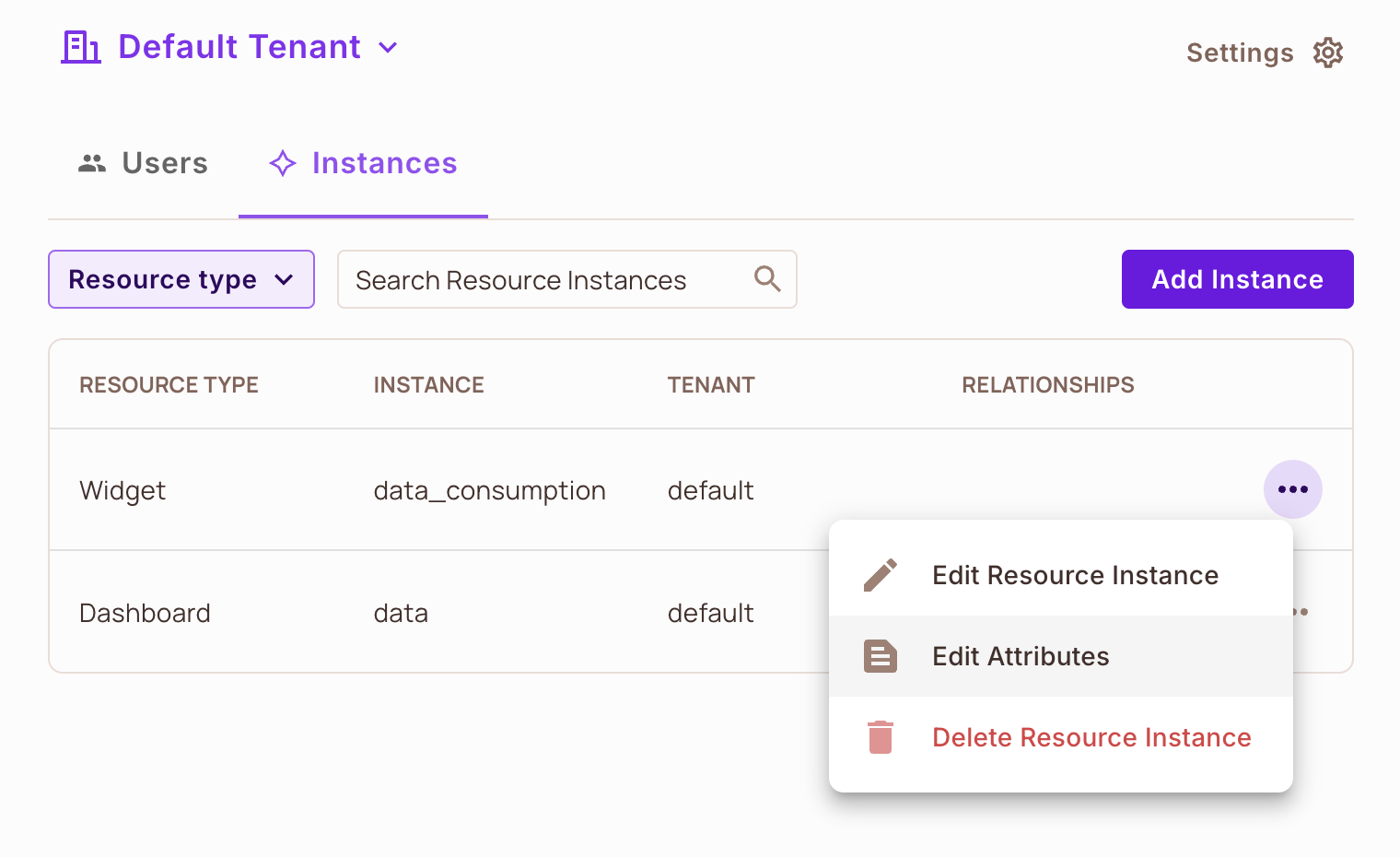
To add resource instance attributes directly from the UI:
Go to Directory, then Instances. Select the resource instance,
click the three dots, and select Edit Attributes.
Relationship Tuples (ReBAC)
In Permit, relationship tuples define how resource instances relate to each other, and they are the core of ReBAC. Users are connected to resources through role assignments, and relationships between resources carry those roles across related instances.
A collaboration platform has "Projects" and "Documents". A relationship tuple
says that a document belongs_to a project. When a user becomes Project Manager of that
project, they get access to every document in it. You sync the relationships to
Permit's API instead of setting permissions on every document.
The format for each relation tuple is as follows:
<Subject> : <Relation> : <Object>
To create a relationship tuple, call the SDK's relationship_tuples.create function with
the subject, relation, object, and tenant:
subject- The resource instance assigned the new relationrelation: The relation to assign between the subject and objectobject: The resource instance on which the new relation is assignedtenant- The tenant the subject and object belong to. If the resource instances don't exist yet, the tenant is required to create them, otherwise it is ignored.
For example:
To configure relationship tuples in the Permit no-code UI:
Go to Directory, then Instances. Select the resource instance, click the
three dots, and select Edit Resource Instance. Define the Subject, Relation, and Object, then save.
What's next? 🎉
- Implement bulk permission checks to optimize authorization workflows
- Use policy-based filtering to retrieve only relevant data
- Query and manage user permissions dynamically
You can now sync any data into Permit!