Implementing Fine-grained Authorization in Spring Boot Application
Integrate fine-grained authorization into your Spring Boot application to build robust Java services where users can perform operations and access data based on granular permission policies.
This guide shows you how to add fine-grained authorization to a Spring Boot application using Permit.io. You will set up a policy for creating posts and comments, register users, assign them roles (like Author, Moderator, or Reader), and enforce permissions directly in your app's endpoints.
By the end, you will have a working example where only authorized users can access protected endpoints, and you will understand how to integrate Permit.io into your own Spring Boot applications.
Prerequisites
- Spring Boot application
- Docker (for running the PDP server)
- Node.js (for installing and running the Permit CLI)
- Permit.io account (Follow this guide to create an account)
Policy Configuration
Before integrating Permit.io with your Spring Boot application, you need to configure a policy. If you already have a policy configured, you can skip this section and proceed directly to the integration guide.
Configure Policy in Permit
Installing the Permit CLI
First, install the Permit CLI. The Permit CLI is a command-line tool that allows you to create policies, run the PDP server, and perform other tasks. To install the CLI, run the following command in your terminal:
npm install -g @permitio/cli
Once the installation is complete, run permit to confirm the installation.
Authenticating the CLI
To use the CLI, authenticate it with your Permit account. Run:
permit login
This command opens a browser window and prompts you to log in with your Permit account. After logging in, the CLI is authenticated and ready to use. This also logs you into the default environment (a project can have multiple environments).
You can change the environment by running permit env select and then selecting the environment you want to use.
Creating a policy with a template
The Permit CLI offers various templates to create a policy with predefined roles and resources using best practices. This simplifies policy creation compared to starting from scratch.
To check the available templates, run permit template list. You can also visit the Permit CLI repo to see the templates and the actual terraform code for each template.
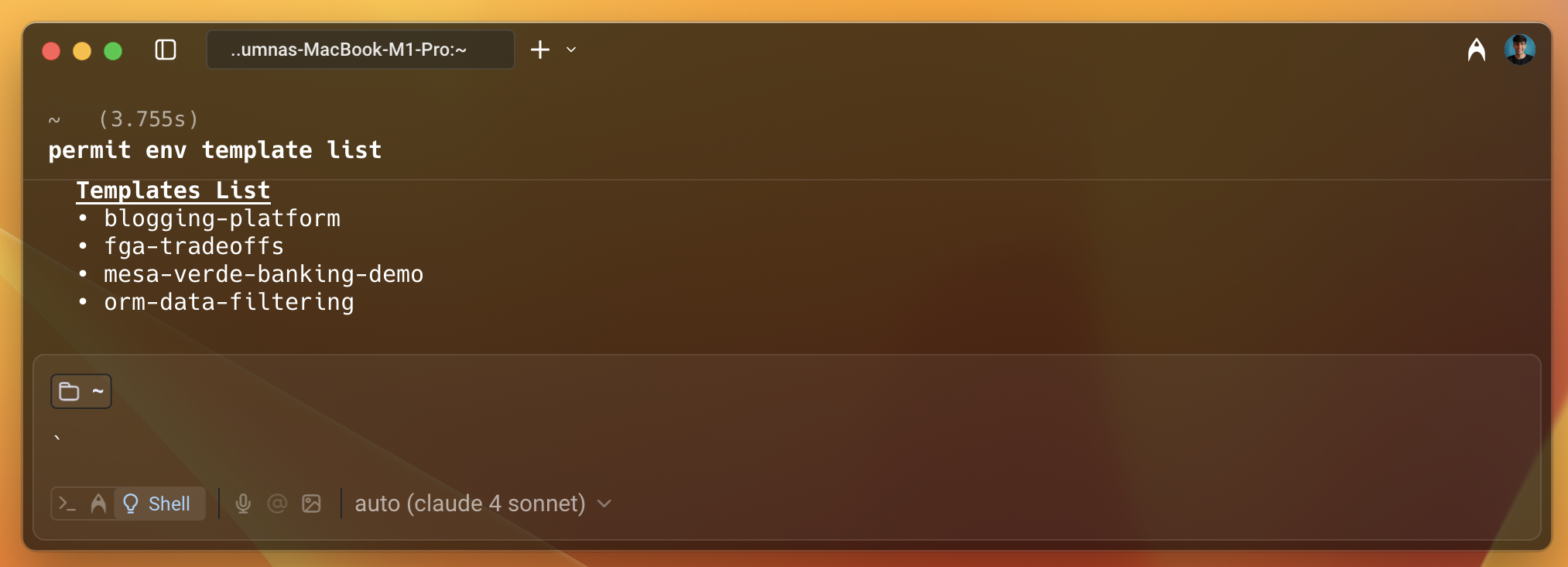
Use the blogging-platform template to create the policy. This template helps you set up a policy for a blogging platform with roles and resources. The policy is explained in detail in the next step.
To apply the template, run the following command:
permit template apply --template blogging-platform
You will see a success message in the terminal.
Understanding and accessing the policy from the dashboard
Next, go to the Permit dashboard, select your project, and click on the Policy tab in the left sidebar. You will see the policy you just created.
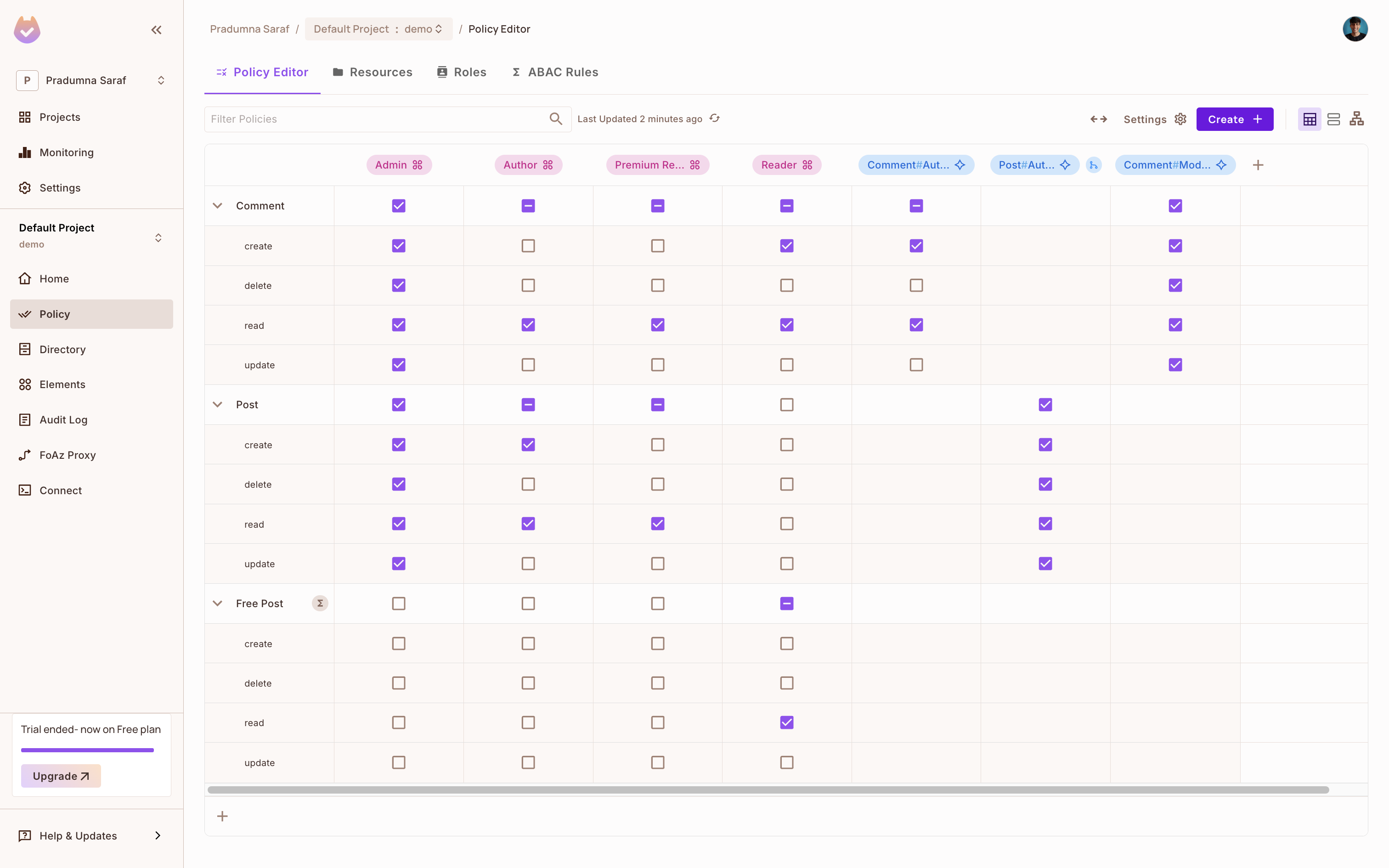
- For the blog application, there are two resources: Posts and Comments. Depending on the role and action, the user will have access to the resource. New users accessing the blog are assigned the Reader role and have permission to read posts.
- As users become Authors, they gain access to create and update blog posts and manage comments.
- There is also a relationship between Post and Comment resources: the person who creates a post automatically becomes a Comment Moderator.
- A Free Post resource set filters non-premium posts, allowing Readers to access only free content. This is a ReBAC setup.
This setup combines ABAC and ReBAC to enforce flexible and secure permissions. You can easily add or remove permissions by checking or unchecking them in the policy editor.
Integration Guide
Now that you have a policy configured, you can integrate Permit.io with your Spring Boot application. The following steps will guide you through the integration process.
Getting the API key
To get the API key:
- Click on Projects in the left sidebar.
- Click on the three dots for the environment you want to use.
- Click on Copy API Key and store it in a safe place. You will use this API key to authenticate your application with Permit.io. If you have any difficulty getting the API key, follow this guide.
Once you have the API key, proceed to integrate Permit.io with your Spring Boot application.
Installing the Java SDK
Once you have a Spring Boot application ready (or you can create a new one for this guide), install the Permit Java SDK. Add the following dependency to your pom.xml file:
<dependency>
  <groupId>io.permit</groupId>
  <artifactId>permit-sdk-java</artifactId>
  <version>2.0.0</version>
</dependency>
Then install the dependency by running mvn clean install.
Read more about the Java SDK here.
Setting up the Spring Boot application with Permit.io
Start by creating a new Spring Boot application. Add the following code to your main application file:
package com.example.permitdemo;

import org.springframework.boot.SpringApplication;
import org.springframework.boot.autoconfigure.SpringBootApplication;

@SpringBootApplication
public class PermitdemoApplication {
    public static void main(String[] args) {
        SpringApplication.run(PermitdemoApplication.class, args);
    }
}
Setting up the Permit controller
Create a PermitController class to handle the requests:
package com.example.permitdemo;

import io.permit.sdk.Permit;
import io.permit.sdk.PermitConfig;
import io.permit.sdk.api.PermitApiError;
import io.permit.sdk.api.PermitContextError;
import io.permit.sdk.enforcement.Resource;
import io.permit.sdk.enforcement.User;
import io.permit.sdk.openapi.models.UserRead;
import io.permit.sdk.openapi.models.UserCreate;
import io.permit.sdk.openapi.models.TenantCreate;
import io.permit.sdk.openapi.models.TenantRead;
import io.permit.sdk.openapi.models.RoleAssignmentRead;
import org.springframework.beans.factory.annotation.Value;
import org.springframework.http.HttpStatus;
import org.springframework.http.ResponseEntity;
import org.springframework.web.bind.annotation.*;

import java.io.IOException;
import java.util.Map;

@RestController
public class PermitController {

    private final Permit permit;

    public PermitController(
            @Value("${PERMIT_API_KEY}") String apiKey,
            @Value("${PDP_URL:http://localhost:7766}") String pdpUrl
    ) {
        this.permit = new Permit(
                new PermitConfig.Builder(apiKey)
                        .withPdpAddress(pdpUrl)
                        .withDebugMode(true)
                        .build()
        );
    }
}
The Permit SDK is initialized with the PERMIT_API_KEY (the API key you copied from the Permit dashboard) and the PDP_URL (the URL of the PDP server). You will set these up later.
Defining the endpoints
Inside the PermitController class, define the endpoints for your application:
    // Register a user and assign the Reader role
    @PostMapping("/register")
    public ResponseEntity<?> register(@RequestBody Map<String, String> body) {
        String email = body.get("email");
        String firstName = body.get("first_name");
        String lastName = body.get("last_name");

        if (email == null || firstName == null || lastName == null) {
            return ResponseEntity.badRequest().body(Map.of("error", "Missing required fields"));
        }

        try {
            UserRead user = permit.api.users.sync(
                    new UserCreate(email)
                            .withEmail(email)
                            .withFirstName(firstName)
                            .withLastName(lastName)
            ).getResult();
            // Assign a role to the user ("Reader" in tenant "default")
            RoleAssignmentRead roleAssignment = permit.api.users.assignRole(email, "Reader", "default");
            return ResponseEntity.status(HttpStatus.CREATED).body(Map.of(
                "message", "User registered and role assigned",
                "user", user,
                "role_assignment", roleAssignment
            ));
        } catch (IOException | PermitApiError | PermitContextError e) {
            e.printStackTrace();
            return ResponseEntity.status(HttpStatus.INTERNAL_SERVER_ERROR)
                    .body(Map.of("error", "Failed to sync user or assign role"));
        }
    }

    // Check if the user has access to create a post
    @PostMapping("/posts")
    public ResponseEntity<?> posts(@RequestBody Map<String, Object> body) {
        String userKey = (String) body.get("user");
        String action = "create";
        String resource = "Post";

        if (userKey == null) {
            return ResponseEntity.badRequest().body(Map.of("error", "Missing required fields"));
        }

        try {
            User user = new User.Builder(userKey).build();
            Resource res = new Resource.Builder(resource).build();
            boolean permitted = permit.check(user, action, res);
            if (permitted) {
                return ResponseEntity.ok(Map.of("message", "User is permitted"));
            } else {
                return ResponseEntity.status(HttpStatus.FORBIDDEN).body(Map.of("message", "User is not permitted"));
            }
        } catch (Exception e) {
            e.printStackTrace();
            return ResponseEntity.status(HttpStatus.INTERNAL_SERVER_ERROR)
                    .body(Map.of("error", "Permission check failed"));
        }
    }
- The
registerhandler allows new users to register for the blog application and assigns them the Reader role, giving them access to read posts. - The
postshandler checks if a user has access to the Post resource. Since the blog application can have various elements like creating a post, commenting, editing, etc., create a new endpoint/poststo demonstrate access control. Only users with the Author role can create a post.
Testing the registration process
To demonstrate the registration process, run the Spring Boot application and use the curl command to make a request to the /register endpoint.
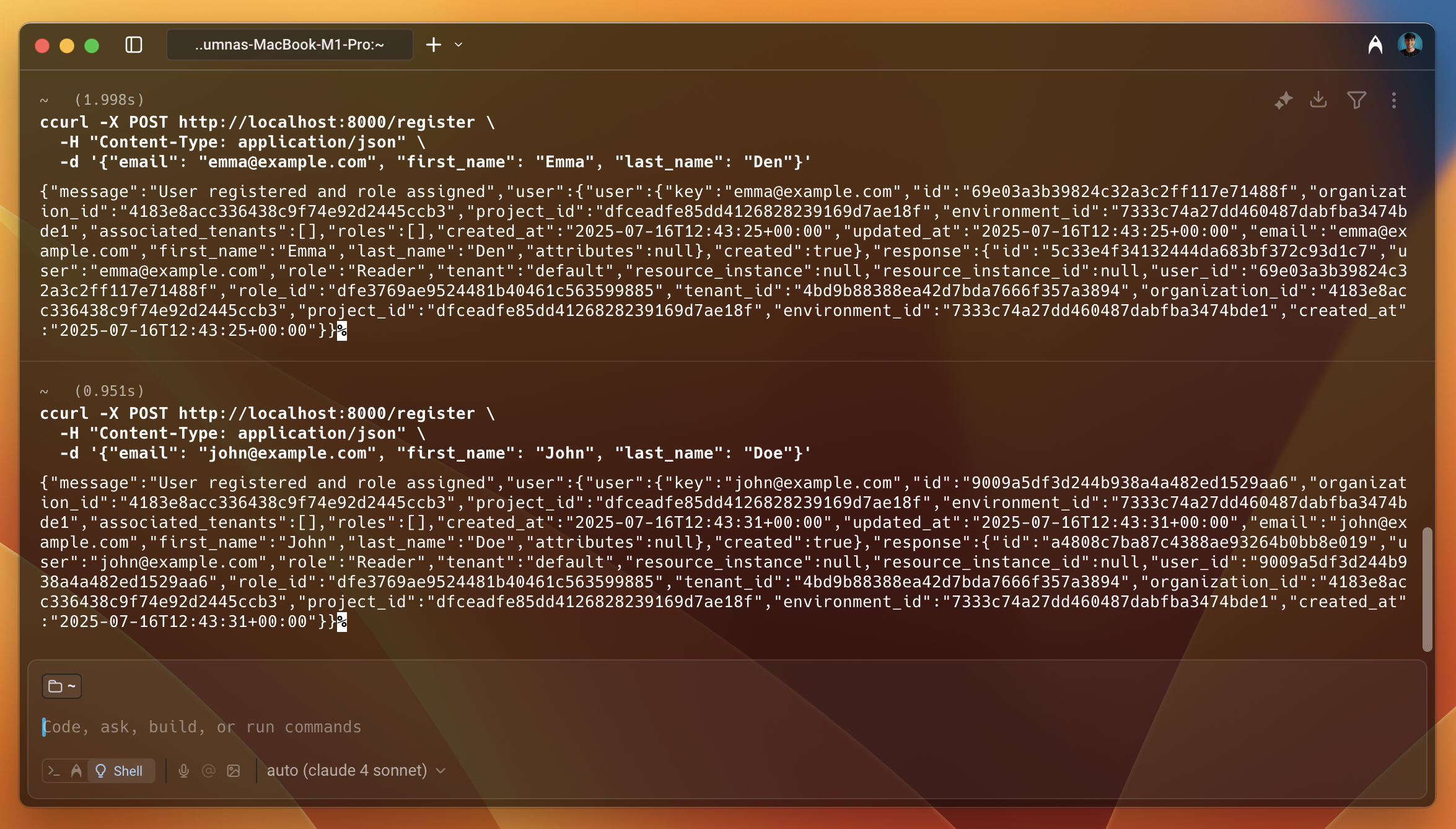
As shown in the image above, the user is created successfully and you receive information about the user in the response, such as id, project_id, key, etc.
Giving the user access to the resource
The user is assigned the Reader role by default. Now, update the user to the Author role to allow them to create a post. To do this, use the Permit dashboard:
- Select Directory from the left sidebar in the Permit dashboard.
- Click the Add Role button.
- Select tenant (default) from the dropdown.
- Select the Author role and save it.
You will verify this later when you check the access.
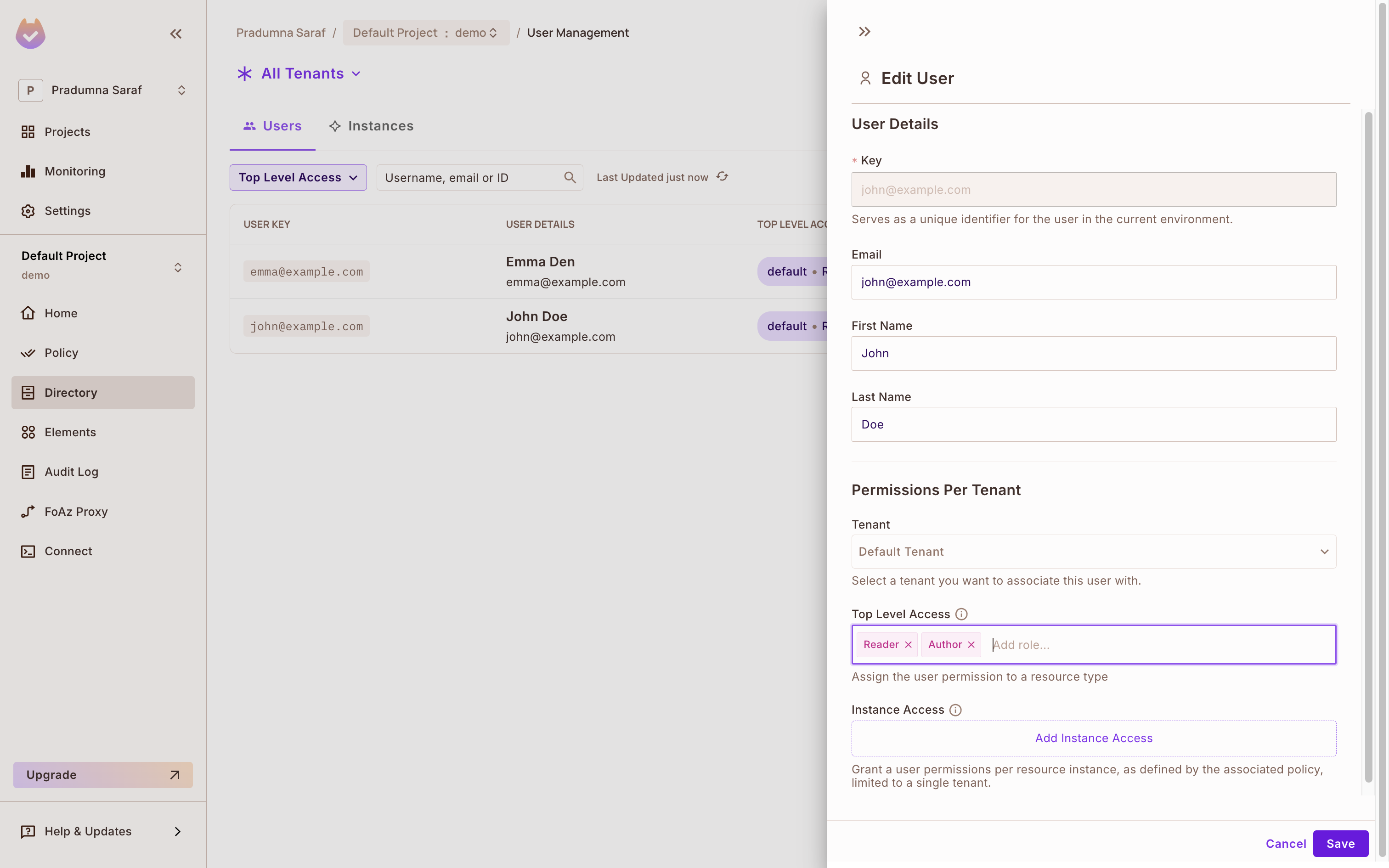
You can also add more roles and resources as needed. Now, set up the PDP server and check the authorization.
You can grant authorization programmatically as well. This example demonstrates how to add authorization using the dashboard.
Setting up the PDP server
At this point, your application is ready with the user synced and the policy created. To enforce the policy, use Permit's PDP (Policy Decision Point) to check if the user has access to the resource. First, set up the PDP.
Run the following command to spin up your environment PDP in a Docker container:
permit pdp run
After you run the above command, you will see output with information such as container ID, name, etc.
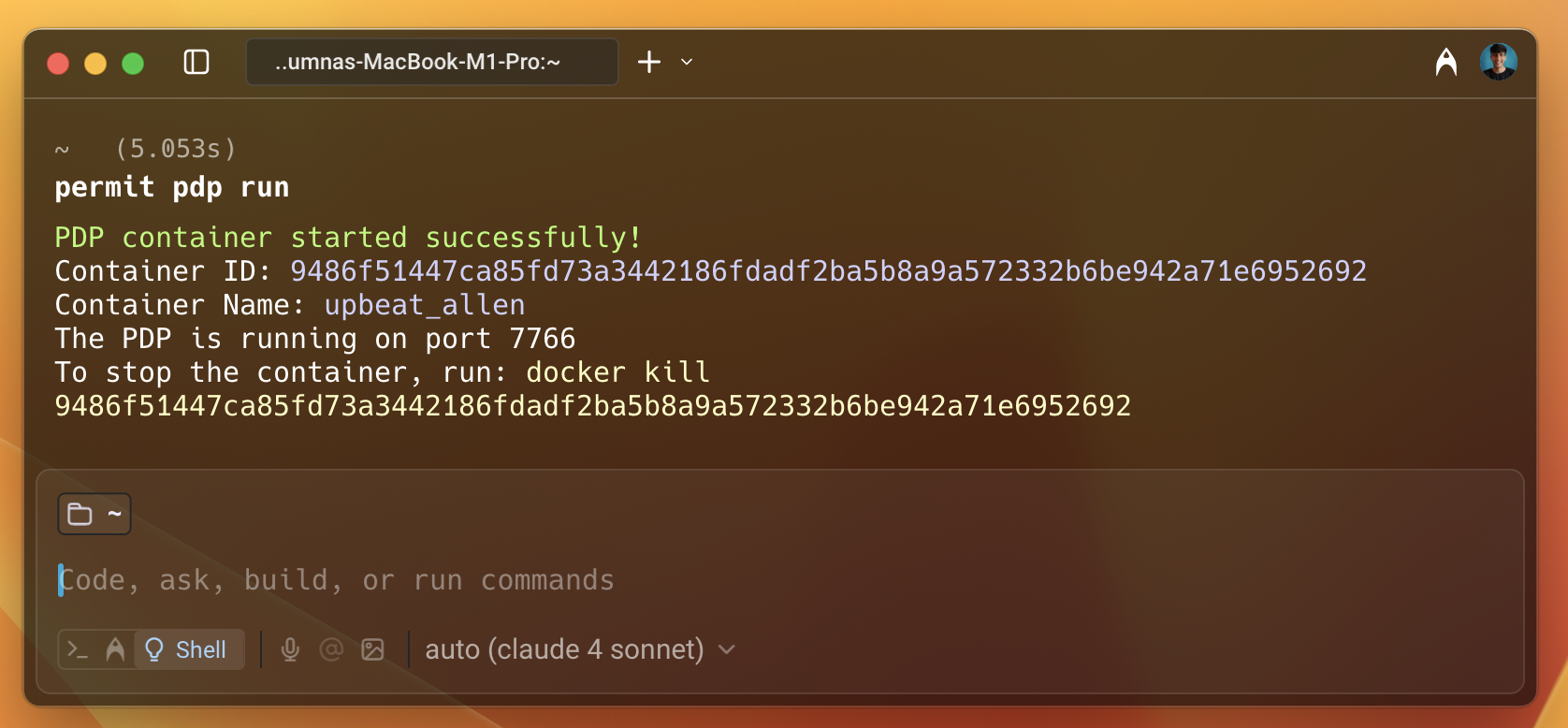
The PDP server runs on port 7766 by default. You can change the port if needed. Finally, update the PDP_URL environment variable in your application.
Checking the access
Now, check the policy enforcement. Since you have added the user to the Author role, you can check if the user has create access to the Post resource. To do this, use the curl command to make a request to the /check-permission endpoint.
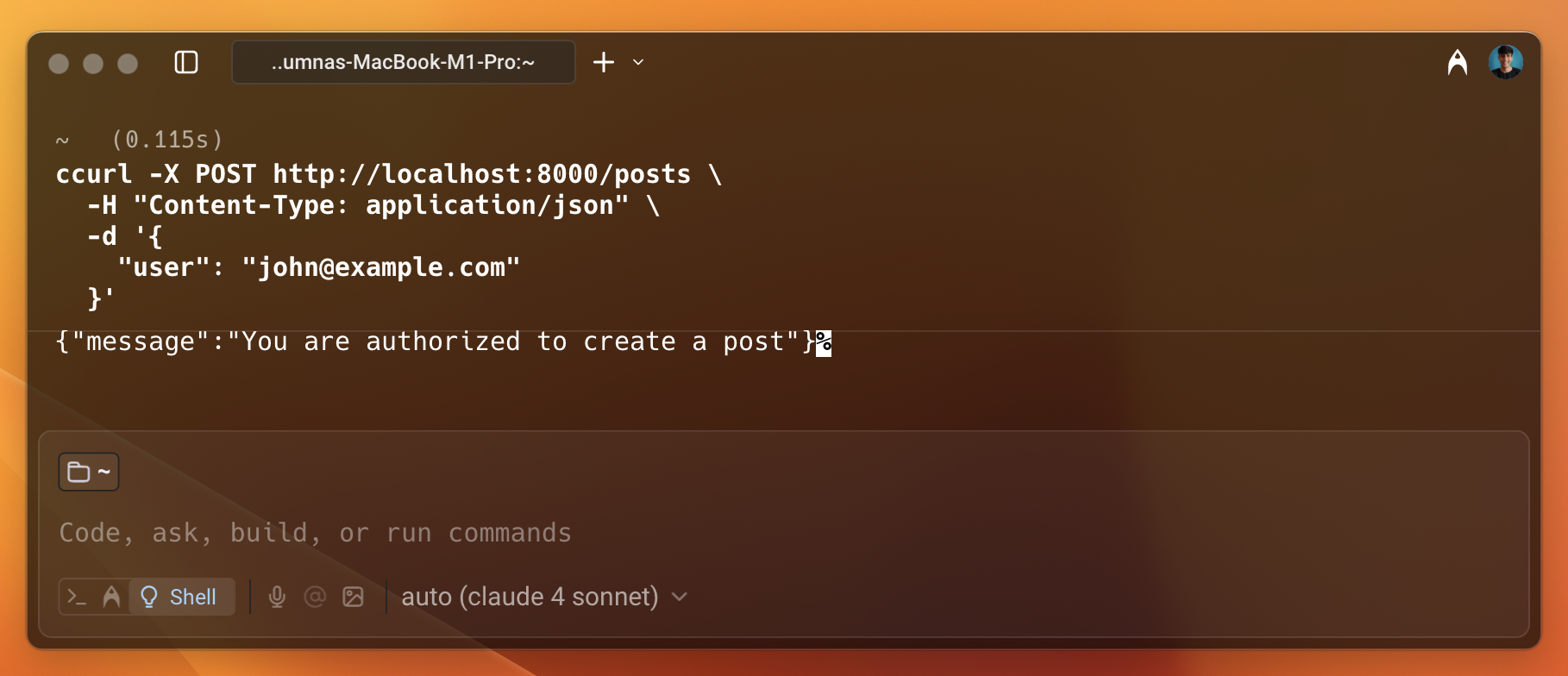
As shown in the image above, the user is permitted to access the resource. Remove the access from the dashboard and check again.
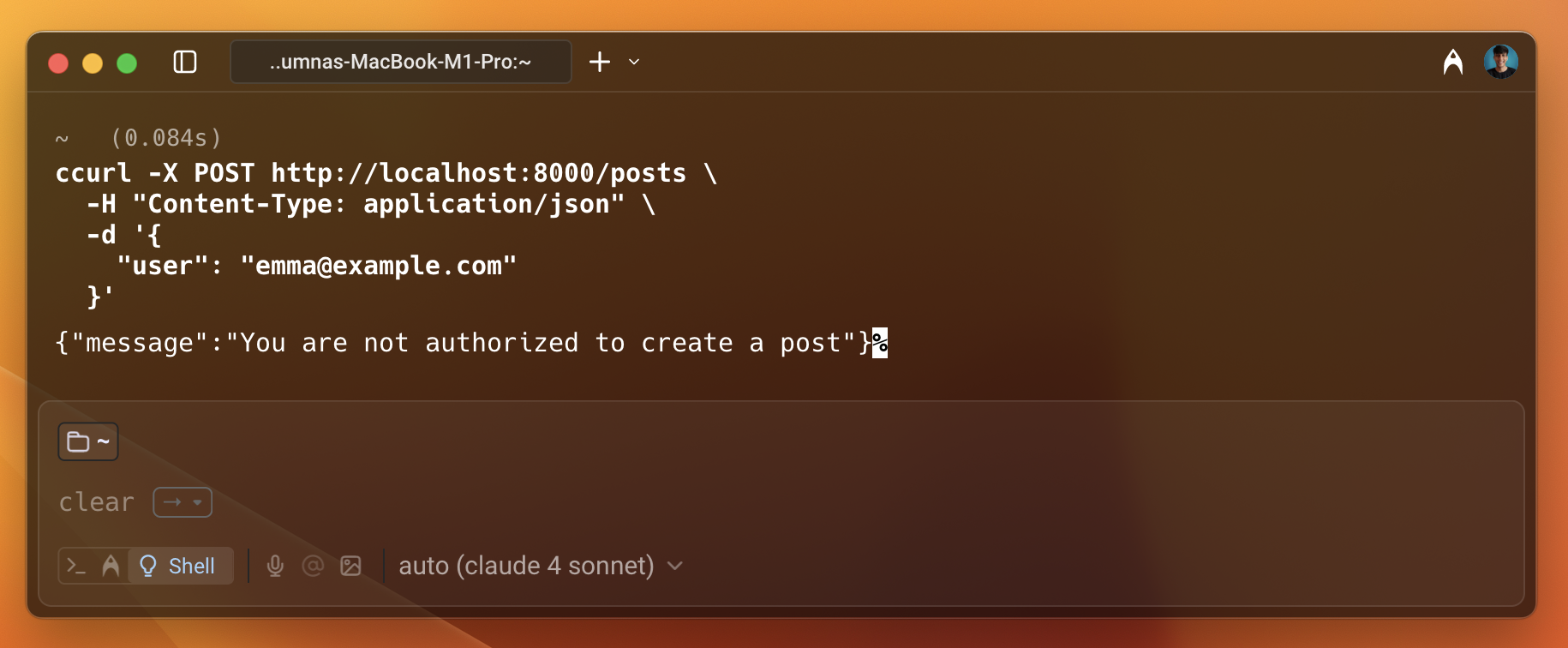
This time, you can see that the user is not permitted to access the resource. This is how you can enforce policies using Permit.io with Spring Boot.
Conclusion
In this guide, you learned how to integrate Permit.io with Spring Boot. You created a simple Spring Boot application that syncs users and tenants with Permit.io. You also created endpoints to check the user's access to the resources. You used the Permit SDK to enforce policies and check authorization. You also set up the PDP server locally using Docker.
Further Reading
- Java SDK Documentation - Explore advanced features and API methods
- Building RBAC Policies - Learn how to create and manage role-based policies
- Deploy to Production - Best practices for production deployment